
This page documents how end users (catering company staff) are invited to and consent to receive SMS messages through The Software Chef staff portal platform.
The Software Chef is a multi-tenant catering management SaaS platform developed by CedarView IT Solutions. Catering businesses use the platform to manage events, staffing, and scheduling. Workers (W2 employees and W9 contractors) are invited by their employer through the admin portal and must explicitly consent to receive SMS messages before any messages are sent. This page documents that opt-in flow in full.
1
Administrator Sends an Invite
A verified business administrator logs into The Software Chef admin portal and navigates to the Workers page. They click + Invite Worker and complete the invite form with the worker’s name, mobile phone number, worker type, and role assignments. When they click Send invite, the platform generates a unique one-time invite token and sends an SMS to the worker’s phone number containing a personalized invite link. No messages of any other kind are sent to the worker at this stage.
The SMS the worker receives looks like this:
- “Hi [First Name]! [Company Name] has invited you to join The Software Chef staff app. Tap here to get started: [invite link] Reply STOP to opt out.”
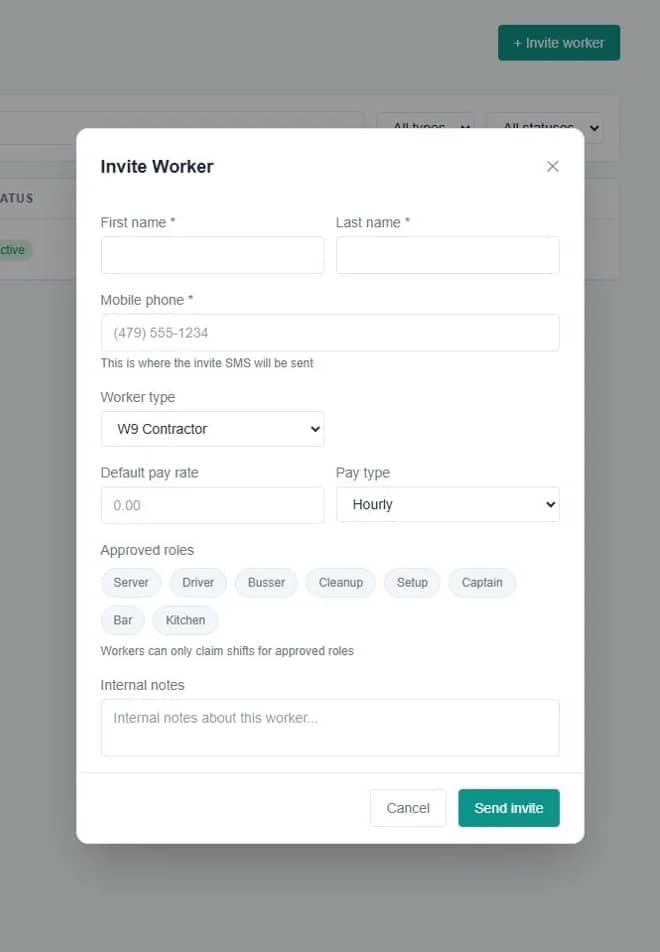
Screenshot 1: The administrator’s Invite Worker form inside The Software Chef admin portal.
2
Worker Reviews Consent Disclosure and Checks the Box
When the worker taps the invite link in the SMS, they are taken to a consent screen inside The Software Chef staff portal. This screen displays:
- The name of the catering company that invited them
- A clear explanation that SMS verification codes are the only way to log in to the app
- A description of additional message types they may receive (shift notifications, schedule updates)
- Message frequency disclosure
- Message and data rates disclosure
- Opt-out instructions (Reply STOP)
- Help instructions (Reply HELP)
- Links to the platform’s Privacy Policy and Terms & Conditions
The worker must actively check an unchecked checkbox to consent. The checkbox is unchecked by default and cannot be pre-checked on the worker’s behalf. The Continue button remains dimmed and non-functional until the worker checks the box themselves. This action records their consent in the database along with a timestamp and IP address. No SMS messages of any kind — including verification codes — are sent until after the worker checks the box and clicks Continue.
The checkbox label explicitly states: “Note: SMS verification codes are required to log in to this app.” This discloses that while consent is a required action, it is the worker’s own active choice.es that messaging consent is optional and not required to work events, reinforcing that consent is voluntary.
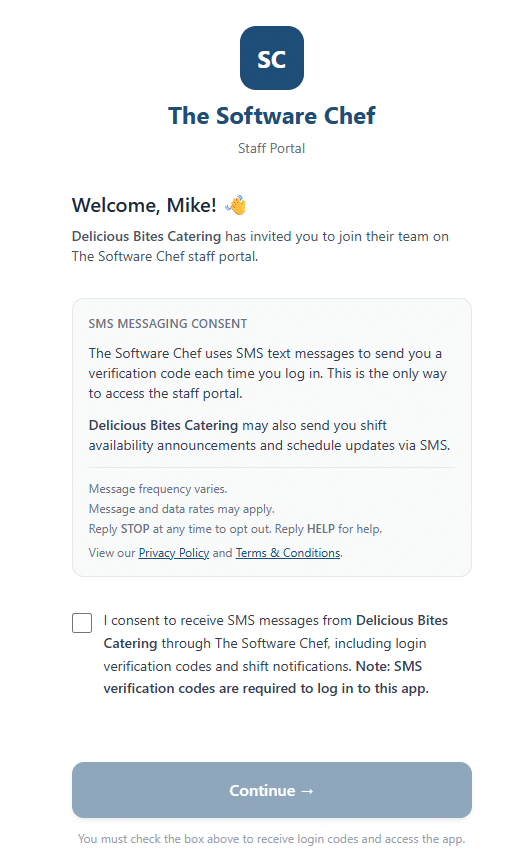
Screenshot 2: The consent disclosure screen shown to the worker before any SMS messages are sent.
3
Worker Verifies Their Phone Number
After accepting the consent disclosure, the platform sends a 6-digit one-time verification code to the worker’s mobile phone via SMS. The worker enters this code on the verification screen to confirm their identity and complete account setup. This is the first transactional SMS the worker receives, and it is only sent after explicit consent has been recorded.
The verification SMS looks like this:
- “Your The Software Chef verification code is [6-digit code]. This code expires in 10 minutes. Reply STOP to opt out.”
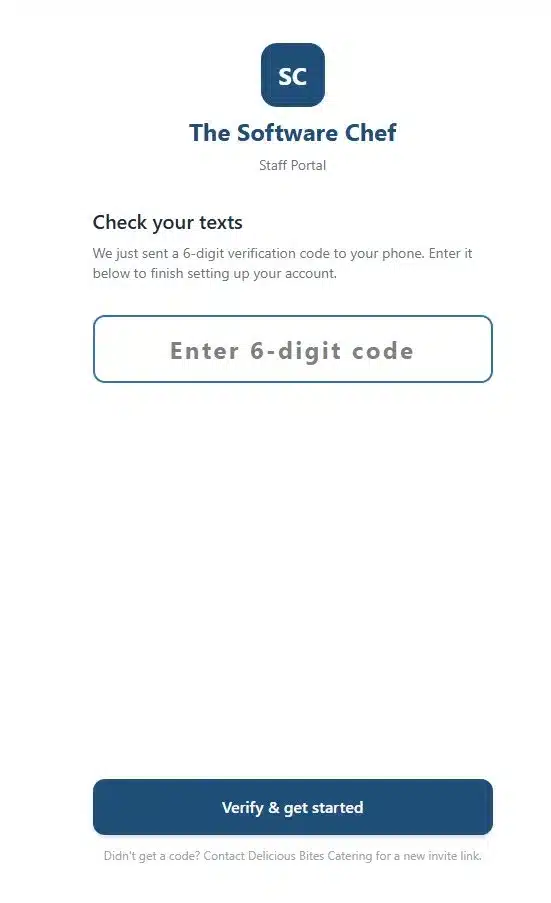
Screenshot 3: The phone verification screen shown after the worker accepts the consent disclosure.
4
Worker Accesses the Staff Portal
After successful verification, the worker is logged into The Software Chef staff portal and can view available shifts, manage their schedule, and receive ongoing transactional notifications from their employer. All subsequent SMS messages — such as shift availability alerts and schedule updates — are sent only to workers who have completed this consent flow. Workers may opt out at any time by replying STOP to any message.
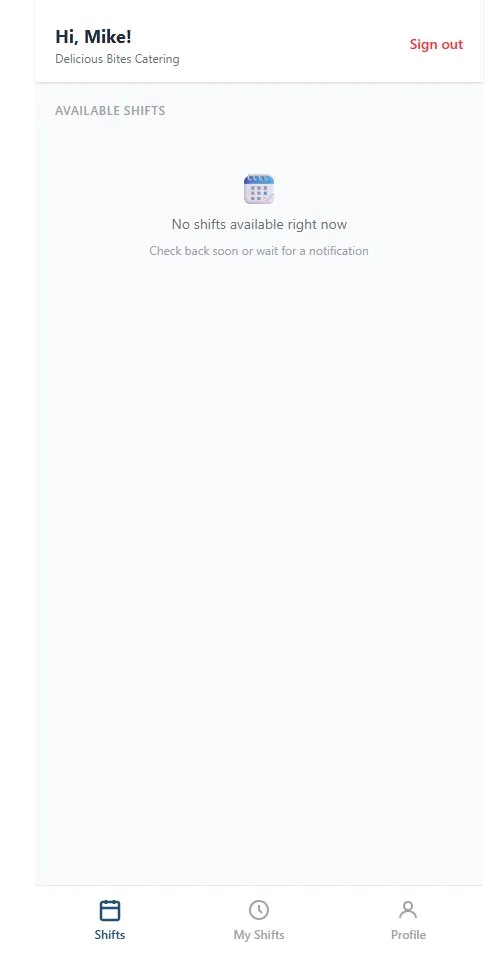
Screenshot 4: The worker’s shift dashboard after completing the consent and verification flow.
Summary of Opt-In Flow & Required Disclosures
Opt-in method: In-app SMS invitation initiated by a verified business administrator. The worker receives an SMS with a unique invite link and must explicitly tap Accept & Continue on the consent screen before any further messages are sent.
Message types: Transactional only — login verification codes, shift availability announcements, and schedule updates.
Message frequency: Message frequency varies.
Cost disclosure: Message and data rates may apply.
Opt-out: Reply STOP at any time. Confirmation message sent on opt-out.
Help: Reply HELP for assistance.
Consent is voluntary: Workers are not required to consent to SMS messaging to participate in events or access their employer through the platform.
Data sharing: Mobile opt-in data and consent are never shared with or sold to third parties. See our full Privacy Policy and Terms & Conditions.
This page is maintained by CedarView IT Solutions for carrier and regulatory compliance purposes.
© 2026 CedarView IT Solutions — The Software Chef